Showing posts with label Portfolio. Show all posts

Sunday, 26 April 2015

(✎) (✉) Basquiat Inspired Digital Image Part II


NOTE: I USED COPYRIGHTED IMAGES TO CREATE THE ARTWORK.
List of sources I used to make the artwork: http://1drv.ms/1Kl3BP7


Title: Sport, Soccer, World
Medium: Adobe Photoshop CS6

Artist Statement

     I chose to focus on the layers because my main theme is about togetherness, and I needed to combine images, which required me to do layering. The theme is inspired from a video that I watched called "Soccer and World Cup Bring Worlds Together" by National Geographic. [Video]

     The concept that I was trying to achieve is to show how soccer especially sport has made people around the world unite and create fun atmosphere in their countries. That is why, as you can see in the artwork, I put a collage, a soccer huddle photo, and a big soccer ball, which is the emphasis of the artwork.

    I put every element in the artwork with a purpose and interpretation from the video. The collage in the artwork represents the diversity of people in the world. As you can see, I put photos of people from different races and cultures. If you notice, you will also see that every photo has different border colour which helps the collage to represent the message.

     Below the collage, there are two texts saying "everybody forgets their culture and races when they play" and "soccer brings worlds together", those are two quotes I got from the video. I included them in the artwork to help convey the message that the artwork was trying to communicate. I used a drop shadow effect from the blending option tab to make the text clear because when there was no drop shadow, the text looked vague because of the colour of the background. I also added some kind of cool accidental effect that I got by masking the texts to the collage and the soccer players huddle photo.

    Then, there is a big soccer ball. This is basically the focal point of this artwork because this artwork is mostly all about it. Previously, the soccer ball was in normal shape or look. Then, I used the gradient tool from the tool box to create a fading effect on the soccer ball. I did this because it makes the artwork look professionals and helps the below elements to be visible.

    One of the elements below the soccer ball is a soccer players huddle photo. It is a cut out background photo which I did it by using the selection tool. If you notice, the photo looks dimmed. The reason is because the original colour looked to bright and contrasting, so one way I can made it unify to the overall elements was by tweaking the colour of the image by using the Hue/Saturation adjustment layer.

    The background of this artwork represents the whole atmosphere of how it is like when there is a soccer game. Aside from the interpretation, if you notice the background looks like there is only one image, doesn't it? However it is not. There are four images that I combined to make the background. So, first of all, I actually used the selection tool to the original image to cut some parts and used the refine edge option to create a fading or transition looks to the image. I did this step on the other tab. After that I copied the image to the artwork tab and positioned it. So, because there was a negative space around the soccer players huddle photo, I copied the image, and positioned the copied one below it and same as the third one. The fourth image is actually a grass texture stock photo. I pasted the image to the artwork, positioned below the third copied background imaged, and I distorted it to make the image even with the background. That way, I tricked the perspective of the image. As you can see, the players look like there are on the field getting ready to play the game.

    At last, I tweaked the whole artwork by fixing some elements, colours, and I also added a Hue/Saturation adjustment layer to make the artwork dimmed.

    Overall, I very satisfied with the result. I actually learned a variety of new things. From composition, colours and interpreting a message on an artwork. However, one thing I really learned is that I always use photoshop just to create graphics, I rarely make something like this. Because I used to think that it is kind of impossible for myself to create a design from a photo. I do not know why, it was just my weakness. But when I finished working on this artwork, I just realized that I can do more than that. Having said that, now I can explore a whole new thing in my design!

Sunday, 29 March 2015

(✎) (✉) Daily Create #6

Title: Fabric Art
Medium: Sony APS-C
Picture Taken On: Sat, Mar 28th 2015
Task: Fabric: we wear it, sleep on it, decorate with it. Make a photo of an interesing cloth design or texture.


Saturday, 28 March 2015

(✎) (✉) Daily Create #5

Title: Bump
Medium: Sony APS-C
Picture Taken On: Sat, Mar 28th 2015
Task: Take a closer look at where you spend a lot of time. Photograph something there you never noticed before.

Saturday, 7 March 2015

(✎) (✉) Daily Create #3

Title: Garbage
Medium: Nikon D3100
Picture Taken On: Thurs Mar 5th & Fri Mar 6th,2015
Task: Something that makes you angry.

Thursday, 5 March 2015

This is it - Sport Brings The World Together

Everything is practice. – Pele
To me it was never about what I accomplished on the football field, it was about the way I played the game. – Jerry Rice
You miss 100% of the shots you don't take. – Wayne Gretzky
I can accept failure, everyone fails at something. But I can't accept not trying. – Michael Jordan


Source: YouTube, Brainyquote, thinkexist.com, inspirationalstories.com

Thursday, 26 February 2015

(✎) (✉) Daily Create #2

Title: I Play Football At My House
Medium: Sony APS-C
Picture Taken On: Tue, Feb 17th 2015
Question: Take a Photo that shows two contrasting things

Sunday, 8 February 2015

Monday, 16 June 2014

(✎) (✉) Video - Self Portrait Culminating Assignment


Video-Self Portrait Project Statement
Name: Hamzah

This is my Video-Self Portrait; I finished this project on Sunday, June 14th 2014. The title is “Don't give up”. The goal that I was trying to achieve is to create a video that has a powerful message, which the meaning that I was trying to communicate is to show confidence and never give up in everything; always try the best. The mediums that I used to create this project are; Adobe Premiere Pro CS6, a Nikon Camera, a Canon Camera, and a Motorola Phone.
       
       The idea behind this project is to show optimist and never easily give up, and the story behind this project is about my life. So, talking about the videos, I will try to describe each scene or part. So first of all, this video is about a homework or assignment that will be due the next day, and while that, I haven’t done any of it because of too much assignments that I got from other classes, so I got confused, feel hard and overwhelmed.
       
         So, first scene, I chose a table as a place to study and the story is, I usually study or do homeworks/assignment at that place, but because I had too much things to do and overwhelmed, so I left it. That's why it is dark and quiet. I also used a heartbeat sound in the background (that will continue until the fifth scene and...) to represents nervousness and help support the atmosphere. Second scene, the calendar is representing the due date of the homework/assignment, and the ”homework due” text that is moving back and forth, helps to communicate the meaning and also the fast ticking clock sound is helping to communicate the meaning as well as representing “hurry”. Third scene, it represents that I am kinda giving up on the homeworks/assignments, and decided to go home. Fourth scene, it represents that I arrive at home and still in nervous feelings; again by the heartbeat sounds. Fifth scene, the story is, I went to my room and wondering about my problems, and I really don’t know what I am going to do; confused and overwhelmed. It represented by my mood and position, which is shown by the way my head looking down and seemed to be wondering about something. It also represented by the confusing sounds, a bunch of texts that are flying above my head, and the layered sounds that are suddenly appeared. So it became more confusing. Sixth scene, this part is telling that I am wondering about something, which is the time. It represented by the clock, so I am thinking that I am wasting time and I shouldn’t do this, and it is also supported by the ticking clock sounds in the background. Seventh scene, it goes fade a bit, and opened by me in other place but still in the same position, which is looking down. But this time, the story is, I have realized that I shouldn't give up and stop now. I should wake up and try to trust in myself and be optimist. And then, it fades (to helps create the feelings of victory or triumph) and I raised my head up with a vision of full of hope, confidence, optimist and never give up. And the background sound is starting to disappear and the music is starting to raise as my head goes up. Eighth scene, it fades a bit, but rather than “black fades” I used “white fades” to represents triumph and victorious end. After that, the scene is showing me that I finally realized and decided to work hard and study for the homework/assignments at the place where I usually study, which is the table. And then, there the words, they are the characteristics that usually helped me to be strong when I have a bunch of work that have to be done and I get overwhelmed. Ninth scene, it is telling that I finally succeed with my work and won an award that I didn't expect before. And then, I put my last message in the video which is saying that “You can do it!”. It means, if we have problems there are always ways to solve them, so don't give up.

    Overall, this is all about my life; if I got too much homework/assignments, I sometimes feel overwhelmed and confused, but later I often realized and raised and try to do my best. Anyway, I am satisfied with my work. I really like the background music that I found, because it matches the project's theme and giving a victorious and triumph feelings, which is the feelings that I wanted since in the beginning. I had learned a bunch of things from this, such as using Adobe Premiere Pro CS6, how to shoot video properly using cameras or other devices, how to fit musics or sounds properly with a footage, and how to create a powerful message, etc. Anyway, this was a good experience for me.

Saturday, 10 May 2014

(✎) (✉) Ten Photos Assignement

Hello. this is for the ten best photos assignment. I took a lot of photos but these are the photos that I picked the best.


Thursday, 10 April 2014

(✎) (✉) Kinetic Typography Project


Hey, welcome back! this is my finished work of the animation. check it out :


Artist Statement

This week we have been working on our new subject of animation, which called “Kinetic Typography”. What is it?... it is a type of animation that only consists of texts/words and sounds, but sometimes it has pictures and images too, and even videos. And the main purpose is; to represents voices by animated texts, such as (if you knew it) those F-150 ads. However, because this is our first time created this animation, so our Kinetic Typographies are based on movies, songs, and speeches. For me, I decided to do a clip from a movie called Monsters University (made by Disney*Pixar); which is at part (if you have watched it) when Terry and Terri got arguments.
        
         Anyway, after two/three weeks I have been working on this project, finally I finished it! I gave it a title called “ Terry & Terri Kinetic Typography”. I used Adobe After Effects CS6 to create the final product and Adobe Audition CS6 for cutting/mixing sounds. The content of the work is about twin sibling brothers, which their names are Terry and Terri (they are the characters from the movie), and their dialogues’ represented in the animation by different colours but using the same tone. However, about the story, based on the actual clip, they are siblings that are trying to introduce themselves to the audience, but because one of them doesn't agree about the introduce, so they get a little arguments that make them become funny.

          My favorite thing about the final product is the design, because after I finished work on it, I realized that the design is actually quite match the feelings of the dialogues such as the fonts and the background. On reflection, I probably would like to improve the styles, because a few of the animations didn't match the feelings, what I meant is… the design is fit but some of the animations are weak, such as for the texts that represent the Twelve Principles of Animations; they somewhat need to improve; to make them look more interesting. My design choices were first of all they have to match the feelings of the dialogues, medium/suitable fonts, balanced colours, and balanced contrast. To made it that way, first of all I had to observe the dialogues, which later made the feelings and then represent them by colours. After that, I picked a few fonts, which are Abadi MT Condensed Extra Bold, Rosewood Std, Bauhaus 93, and Apple Casual that would represent some texts, and I applied the colours to them, which are light orange for Terry and orange for Terri, and also at this time I picked a colour for the background, which is red. By the way, for the background, it's not just a red solid colour, but I also added a gradient to the red colour to make it look more fancy and comfortable to eyes. I added it, by go to Effects->Generate->Ramp, and I just played around with the options.

         The challenges that I found most difficult were at timing and animating. I found them difficult; because, first, for timing, I had to really pay attention about what the persons are actually saying especially for “quick” speak. For animating, first of all I didn't have any ideas about how to make them look fancy or cool, so I was just creating the texts first and place them at the proper time. But then, I played around with them and try a few animations and then I had my ideas. On the other hand, the solutions that were most satisfying and successful are for the animations. Because, I really didn't have any ideas about how it should look like, what I meant is... I did have the layout or storyboard, but I didn't have anything to make it look more interesting or represent the Twelve Principle of Animation. So, after a several try of styles of animations for the texts, finally I found what I want.

         Anyway, I would really want to create another Kinetic Typography, because so far I think this subject is really matching my style. I really enjoyed and like it. And also, maybe improve my skill on it.

===========================================================
Original clip:


Thursday, 20 February 2014

(✎) (✉) Vector Art Pen Assignment


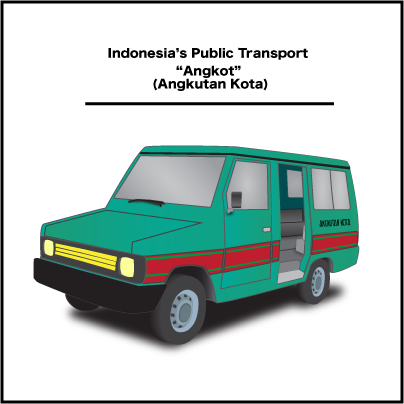
The purpose of this assignment is to develop our skills on the “Pen Tool” in Adobe Illustrator. Our goal is to create a realistic object by using a real photograph as a reference. 


 The original Image and Supporting Image:


Vectored Results:


*Angkutan Kota means City Transportation
For more infos about Indonesia's Public Transport click here


      The images that shown above are vector graphics. But I saved them as .png formats. I saved them as .png formats, because based on this website and this website that I read, the format .png is more stable for the web, it has more colours compared to the others, it could remove jagged edges with the Anti-Aliasing option and it produces better quality rasterized images.

     The procedure about how I created this artwork is first of all I went to a website which is Google, and I searched for the images that I wanted. By the way, the first object that I chose was a traditional instrument. But I decided to cancel it, because the instrument is kinda small. So I decided to choose a car as my object. Anyway, then, I opened Adobe Illustrator and create a document with the option of 400 x 400 pixel and RGB colour mode, I opened the picture and resize it with the “Selection Tool”, and then I started to create the shapes for the car such as the body, the bumper, wheels, windows, and the doors. But, before I began creating things, the first thing that I had to do is create the layers. Because they will help keep the document organized and easy to modify. After that, I created the shapes of them on their layers by using the “Pen Tool”. The techniques were beginning by placing the anchor points on the paths that I wanted. For example, let's say I want to create the shape of its body. So first of all, all I need is to go to its layer and create the path, which is by following the body's shape and place the points around it and remember don't place to much points or you will end up having a complicated and an odd result. After I did that, then I filled the paths with colours and strokes which is by going to the bottom left sidebar and pick the colours. For the wheels, to get the 3D effects, all I need was just use the "Blend Tool", The procedure was first of all I created the shape of the wheel and duplicated it by going to Edit->Copy and pasted it behind the first shape. After that, gave them colours, but the first shape must have a brighter colour than the second shape because it will help them to have a realistic light values. After that select both of them and click the "Blend Tool" (it is on the left sidebar) and bum! The shapes will join together and it will create the effect. For the interior, it was the hardest part for me, because I couldn't get the perspective of it but at last I got it. How I created it?.. Basically, all I did were just the same things, but to get the effect, I used the colours value to help it look 3D. For example, if see you see clearly, the outer part is more brighter than the inside because if I used the same value it will look flat and won't have the effect and also, if you notice there is a line in front of the seat that helps lead your eyes to go inside. For the other parts/shapes, all I did were just the same thing because the purpose of this assignment is only to learn more about the "Pen Tool". But for the last step, I tweaked everything, organized the layers, and created some shadows for some parts. By the way, I created the shadows by using the "Pen Tool" too. I created the shadows by creating random shapes first and apply the blur effect to them, because the effect would help them look like real shadows, I applied the by effect by went to Effect->Blur->Gaussian Blur... and I just played with the Pop Up-Menu.

      The challenges that came across my way was the perspective illusions. It was so hard to understand the perspective because I had to deal with a lot of things like creating the details, matching the colours, etc. The hardest parts were the interior and the rims. Like what I said before, I couldn't figured out how I would be able to create the illusions for the interior and the 3D effects for the rims since they are 2D shapes, but at last I figured it out which is by playing with the hue values, opacity and create some shadows.

     I am pleased with my result because I have never done any of this project for a long time and this is also my first time I created a vector graphics using a perspective illusions. I learned a lot of things from this project, I wish I could do more.

Friday, 7 February 2014

(✎) (✉) Pixel Portrait Assignment


Hello.Welcome Back, to our new assigment. This assignment is about a Pixel Portrait. The purpose of this is to create a Pixel Portrait of ourselves, so check it out. 


        Hey, Those two are the same, don't they? Well, if you try to enlarge it, you will see the difference. The left one is on a .gif format and the other one is on a .png format. What is the difference? So, basically GIF stands for Graphics Interchange Format. It is a bitmap/raster image format. So far from what I've known,  .gif format is usually used by people to create animations but for 'still image' i don't know yet. For PNG, it stands for Portable Network Graphics. It is also a raster image format. So far, I found .png format is more better than others, it often produces better quality images. But in this case, both format for me.... first of all they look the same. So far from what I've seen, the quality of the .png (in this case) is much better than the .gif. The .png is much more smoother and the colours look more balanced and contrasted. The .gif, for overall, it almost has the same quality as .png format, but it just loses some values and colours (some of the parts are kinda dark a bit, like the hair and the details). Anyway, The features and characteristics that I was attempting to accentuate is my looks. The first feature that I found interesting is my sweater. Because, i don't know why but so far everytime I go outside, I usually wear my sweater and my jacket. I rarely wear only a shirt. The second feature is my glasses. I always wear my glasses everyday. The colours that I chose for this artwork are all based on the actual colours. Like the sweater. jacket, glasses, and my shirt (inside).
         How I created those?....hmm.. First of all, I opened Photoshop, create a new document with the options of 100 x 150 pixels, RGB colours, white background, and 72 resolution. And then, I searched for some photos of myself on my computer and find a good one. Then, I opened it on Photoshop. I cropped it to 100 x 150 pixels to match the actual document's size and resolution. I added a new layer above the photo's layer and I picked the colour of my skin by using the "Eyedropper Tool" and began tracing my face over the photo by using the "Pencil Tool" with 1 pixel-size option (but in some cases I changed the size to somewhere around 4-10, because it makes me easier to fill big parts). I traced the face by following its shape... After I got its shape, then I added the other things. Such as the mouth, teeth, eyes, eyebrows and nose. For this section I worked on separate layers, so each part have their own layers and I also worked under the photo's layer (before, I was working over the photo's layer) and just turned the "Visibility" On and Off to see what was going on. And basically, all I did was just trace the parts of the photo that I want.... For the glasses and the hair I just drew what they supposed to look because if I had to trace them, it wouldn't look nice because those parts in the photo were kinda dark and pixelated. Anyway, I picked the proper colours by using the "Eyedropper Tool" again, and drew them by using the "Pencil Tool" with 1 to 4 or 6 pixel-size option. For the glasses' lens I turned the opacity down to somewhere around 37 (by right-clicking the glasses' lens layer and then click the Blending Option... and turn the Opacity down). Because, it helps the glasses look realistic. For the last step, I just tweaked everything and added some highlights or details to each parts/corners to help them look like "8 bit" or "Pixelated". Like in the old video game, like Super Mario Bros. Anyway, thank you and sorry for mistakes.


Friday, 24 January 2014

(✎) (✉) Digital Surrealism Assignment

"Power Savings"
    
      Hello, this is my result for the Digital Surrealism Assignment. My concept for this image is about “Power Savings”. I chose "Power Savings" as my concept because in my perspective power savings are also part of our life that we should do. It will save the environment, money, and also our body that needs more fresh air. My intended message for this image is to show everybody how it will be and look like, if we keep continuing the habit of power savings.

       In the image, there are several objects that I used to make symbolisms. For the first one, is the “Standing Fan”. I chose a Fan to be a symbolism of an electricity object that people often use when the weather is hot. I chose it because, I would like to show the audience, how "Fans" could reduce electricity if they use them on unnecessary situation or let them plugged on for a long time. And they are might even could contaminate the air if they don't clean them (But, for overall it is a good thing). In the image, if you notice I plugged the Fan's wire/cable to the Sun. I plugged it to the sun because, rather than I plugged it to the Electricity Generator, I would rather plugged it to the Sun that would likely more represent a Power Savings. And I also drew some blowing leaves over the person to represents the air's freshness because of the power savings. For the second one, is the Person. I chose a person to represents the feeling of freshness, which is by using his body's posture that looks like he is just got a freedom or happy or etc. For the third one, is the Electricity Generator. I used an Electricity Generator to represents the Electricity Source which we always use. In the image I made the Electricity Generator burned, it is because I want to show everybody that instead of using the actual electricity, we would rather use the natural electricity that is more better and saver. And the last one is the Sun. The Sun is definitely represents the source of all the power savings. In the image, there are two types of power sources. The Generator and The Sun. If you notice, I decided to burned the Generator and put it on a “cage” made of grass or something like that. It is because, I want to remind the audience that the Sun's power is much better to use as a source of electricity instead of using the Generator's power as a source of electricity. The Sun's power is more saver, better, and good for the environment.

       The procedure of this image is all started by brainstorming. My first theme of this project is actually about “Strength”. I used to choose “Strength” as my theme because I was really inspired by Football players, I wanted to show the audience about how strong Football players are. On my very first sketch, I was going going to create an image that has a Football player and a lion. The purpose was to illustrate a Football player that tackles a lion or going through a lion. Why?... Because both the lion and and the player, usually have the same traits, like aggressive, brave, and etc. So, I wanted to illustrate if a football player could go through a big and ferocious lion. Anyway, because it was kinda hard for me to gather the images so I decided to cancel the theme. After that, I started to think another theme. But because of I ran out of time to think about a new theme. So, I asked my dad for a suggestion for my project's theme. And he came up with an idea about power savings and he drew a sketch. After I heard and see the sketch, I was impressed so I decided to pick that theme. Later on, I developed the sketch and change things a bit. I redraw the sketches, and I began to take pictures. I took a picture of myself facing a standing fan in my bedroom. I actually had a lot of pictures of it but I chose the best one. Anyway, after that I searched some images on the web (which is on Flickr) to support my theme. I downloaded a several photos of landscape, trees, bushes, a fire, a case or cupboard(that will later on transform to be an Electricity Generator) and a car's battery(it is inside the Electricity Generator). After all the images gathered and open on Photoshop, I started to create my projects step by step.
First of all, I began with opening a new document with the proper size. I opened the photo that I took, and started to select some parts that need to be moved to the actual project's document. I selected the parts by using the selections tool, like Magic Wand, Lasso Tool, and mostly I used the Quick Selections Tool. I selected myself and the fan and moved them to the actual document by using the Move Tool and then I resized them(by the way, in my first sketch I actually moved them with the background which is the bedroom, so all together. But I decided to not do it, because it looked weird). After that, I opened the background image. Before I moved it, I split the image into two parts which is the sky and the landscape. I split them by using the Quick Selection and used the Refine Edge... to make the edges smoother. Then I moved them to the project's document and resized them. And I opened the other pictures that have the trees and the bushes. I selected the parts that I want to moved, used Refine Edge... and moved them and resized them. Basically all the first steps are the same things. After all gathered, I added the light source which is a Sun. I added the Sun by using a Lens Flare Filter. Which is by going to the Filter-Render-Lens Flare. And then, I actually added a Circle Shape on it, to supports the shape of a sun. And I used the Outer and Inner Glow(which is by right-clicking on the layer and click the Blending Option.. and tick the Outer Glow and Inner Glow options) to makes it more realistic. For the second steps, I started to tweak everything one by one. Like, the colours, exposure, quality, brightness, contrast, and etc. I mostly did them by using the Adjustment Layers which is by going to the Layer-New Adjustment Layer. The third steps, I began to add extra things. Like the Generator, the fan's wire/cable, the shadows, grass cage and the blowing leaves. For the Generator, I used the Adjustment Layers for tweaking the Exposure and the Hue/Saturation to makes it look like it has been heated. And then I added the fire on the top of it. And to makes it more realistic I drew around the area of it by using the Brush Tool and picked the colour of red orange and tweaked the opacity of the Brush to make it clear. For the fan's wire/cable, I just drew it by using the Brush Tool that usually located on the sidebar. And picked a colour of grey to matches the fan. And used the Bevel & Emboss effects (which is by right-clicking the layer and click the Blending Option... and tick the Bevel & Emboss option) to make it more realistic, because before it was just a “Brush” line. For the shadows, I mostly did them by using the Brush Tool. Because it was kinda more easier and save more time. Anyway, I picked the colour of black and started draw the lines step by step by following where the light source is facing. And then, I right-clicked on each of them go to the Blending Option... and set the Blend Mode to Soft Light (and actually a few of them are normal, just a few.) and tweaked the opacity to creates the actual shadows effects. For the grass cage and the blowing leaves, they were pretty simple. I just used the Brush Tool and changed the “Brush” to “Grass/Leaves Brush” which is by going to the top of the bar and there many brushes to look up. Anyway, I chose the “Leaves/Grass Brush” and pick a colour of dark green/light green. And I just drew it on the place where I want to. And for the blowing leaves, I used the Outer Glow effects to makes it more interesting. And The fourth step was about tweaking. I tweaked everything again to make sure that things are on the right way. For the fifth step, because I felt like there was still something. I realized that I was missing blurs. So, I added blurs to every layers/places to make them look more realistic. I added the blurs by going to the Filter-Blurs-Gaussian Blurs. And the last step was for organizing and cleaning things.

      Anyway, I have been learning so much things while doing this project. I have learned what Surrealism is, I have learned how to properly combining pictures together, adding effects, manipulating photos, playing with the lights and hues, balancing elements and etc. For overall, I am satisfied with my end result even though in my thought that it needs more tweaking but I am still satisfied about what I have done. I wish I could do more of these. Because sometimes, I feel like I am inspired about this project. And anyway, thank you very much. Sorry for typos and mistakes :)

Thursday, 19 December 2013

(✎) (✉) Stop Motion Film Project

      Hello. This is our Stop Motion film project. we did this in a group. Our group's name is SKH STUDIO.
Sorry, the picture below is supposed to be a video. But I didn't have time to upload it, so you may watch it on one of our group member's blog.

Story/Plot: 
" A story of a fanatic sport fan that is very loyal to his favorite team. Which is Maple Leafs team. Until one day, Maple Leafs has an away a game facing their rival. The Canadiens.Because of his loyalty. He still doesn't want to miss the game. Even though it is his and their rival. He is not scared to go to the stadium, because sometimes there will be Maple Leafs fans too. But when he arrived in The Canadiens' stadium. He got surprised by something that is unusual.... What is that?? what will happen? is he getting something good or bad??? or what??" 
Find the film here: Loyalty Of The Fans
By: SKH STUDIO
Members/Crews: Jimmy
                                Kadryn
                                UrangSunda

Thursday, 24 October 2013

(✎) (✉) Chess Piece Artwork Assignment


"The Space Chess"

Too Dark??
Here the brighter one:
⇩
How I created it/ The presentation:


     Hello. I will tell you about how I created this. So.. First of all, everybody in my class got their chess pieces. Some people have the same kind and some people not. Anyway I got a Bishop, which is good for me because it is not too complicated to draw. And the objective of this assignment is.. we have to create the chess piece to looks as realistic as possible by playing around with the values, contour lines, or smudging etc. We also have to set the chess piece to be the focal point. And create movement on the background.
      My first part is I started to draw some thumbnail sketches in my sketchbook. And then I came up with four ideas to choose but then I decided to pick one (which was that final image ^) and draw it for the second time to make it nicer.
     After I got my idea and drew the sketch, I started to draw my chess piece for real on a big sheet of paper. Before I started draw my chess piece, First of all I have to place my real chess piece somewhere in a room that has dark and lights so I placed my chess piece in a dark room that has a lamp beside it. And then I started drawing. The first step that I did is I drew the outline of it by using an HB type of pencil then drew the contour line. And after that I started to layer the contour line to make it as thick/bold as possible by using the 2B pencil and then the 6B pencil. After that I smudged the contour lines until disappear so it wouldn’t look like imitation. And then I applied the value to it by following real life lights then smudging and layering until it looks realistic.
     For the background, I decided to create something interesting. So my theme is “ The Space Chess” it is about a chess piece from a strange planet that wants to see its kinds in earth because it heard from its planet that there are a lot of different chess pieces in earth. Back to the artwork. I wanted to create movement around the chess piece like a real meteor/comet because the theme is in the space, so I drew a bunch of thin lines layer by layer around the chess piece until it becomes bold. After it became bold, I began to smudge the two tails at the back(as seen in the image^) until it looked fading/gradient to the front. It would create a feeling that the chess piece is coming down. I drew it using the HB pencil for thin layers and then 2B and 6B for the bold.
     For the composition, I placed my chess piece on the left corner and facing down at the bottom right corner. Because, instead of placed in the center, I would preferred play around with the position and choose for the best one. And it also matches the artwork's theme. For the size of the chess piece... I made it looks bigger than the earth to create a proportion and to make the chess piece as the focal point/ emphasis of this artwork. The next is the earth. Because I said that this artwork is about a chess piece that is coming to earth. So I drew the earth right on the corner right. I made the earth looks small to create a proportion and balance. After everything is finished. I added the value to the background by drawing a bunch of lines on the top, bottom right, middle right, and behind the chess piece. After all finished, and then I smudged half of them until they look balanced and fading to each other. The value on the background helps create movement and to make it look like in the space. So... that is it thanks, sorry for grammar mistakes and typos.

Sunday, 6 October 2013

(✎) (✉) Logo Assignment Part 2

Logo Assignment Part 2 section 1: The Logos
Main Colour Version
 
Other Colour Version
  
Black & White Version
 

Logo Assignment Part 2 section 2 : Written Statement

       In the last few days, I have been working on the logo assignment, which is to create a logo from animal that represents my qualities on design. I got confused for the first time to chose what animals that best represent myself. So, I came up with three animals to choose which are tiger, eagle, and owl. Because tigers were kinda hard for me to think, and eagles that kinda common, so I decided to chose owls. Why I chose owls..?? Because, owls are calm, thinker/strategist, and fast. What I meant is.. these qualities could be representing me to be a graphics designer. For calm, calm could mean.. not to hurry everything. So we would get a perfect result. Or thinker/strategist. If in the owls side, it is like when they're trying to trap their prey or trying to be invisible so their enemy or prey couldn’t see them. If in the design side, it could mean we have to be creative or work hard and use our brain to make it better. And for fast. Owls are fast animal, they always react if they see their prey by using their sense. In design “fast” means efficiency and thinking. We should work fast but we have to aim the design that we want and if we had the result, we shouldn't forget to recheck. To make sure it meets the design of what we wanted.     
       In the designing part. Because of my company's name is “Flights Studio” so I planned to use a cool/light colours, because it will represent the “Flights” word which relates to the sky that is clear and beautiful. I started designing using the Pen Tool to trace the owl from an image that I got from the web. I decided to create a curvy smooth line, for the owl’s body. Because it will create the details to the smooth edges from its wings and other parts. For the eyes, I chose to create a half circle shape because it will help create a balance to the owl’s body's direction. For the face, I just make it similar to the actual shape of its face, because it also helps create a balance to the body and the eyes. In typography I used a thin, simple, clear looking font for eyes because they represent the company's name. The font that I used was Caviar Dreams (it is actually a custom font). I positioned the typography below the left wing and placed it away from the owl a little bit so it lined in the center. I positioned the typography there, because it represents the company's mission. The mission is “we work as a team and help together to reach our dream to be a five star company”. The colours that I applied to the typography or the company's name are using two different colours. For “Flights” I chose a cool/light blue colour because it represents the sky. And for the “Studio” I chose a cool/light grey colour. For this one, there isn't any meaning but it helps to create a contrast. Talking about contrast, I tried to create a few contrasts that were possible to each part of the body. Because contrasts could help create differences on the logo. Like the owl's eyes and the face. I applied a light grey colour to them, but then for the face, I dimmed the colour for 70% because if not, it wouldn't create the contrast. For the background, I didn't really want to have them. Because it would ruin the balance and the contrast of the logo So I decided to leave it with just a negative space. After all finished and for the addition, I added a line and created it with the Line Tool. I positioned it below the company's name and lined vertically. And then. I applied a white & grey gradient to it that goes from left to right and changed the type of it to oval to creates a movement, values and represents the company's feature which is efficiency. And I also add another thing which is a shadow. I applied it to the owl and created it by just copied the main owl's body and placed it underneath the main body. And applied a sky colour gradient to it, to helps create a movement and represents the company's work that they are always there. For the unity, rhythm, and the others, I didn't really create them because I want to keep the logo as simple as possible. But for last part, the emphasis. This logo was actually didn't have an emphasis, I didn't think about creating an emphasis. But after I finished design the logo, it seems that the face could become the emphasis. Or it could be the “Flights” word too.
      In the technical part, I don't really have anything to say. I just learned so much about Illustrator. When I was creating the logo, all the things that I used often was just playing around, editing, rechecking. But for the tool , it was the Pen Tool. The Pen Tool was a perfect tool for tracing anything on the image or even create something that you want. It is also a neat tool for creating a line. For the effects, so far I didn't apply any. Because I didn't think about adding any effects. For the use of layers. Layers are very important things that need to be use in every case. Like if you have a complicated design, you should use the layers to organize things. In my case I used layers for organizing every parts of the owl's logo, including the typography. And also, I used layers to make things more neat and tidy.
      For thoughts and opinion about this assignment. I'm really happy about what I have done. Because, previously I didn't know how to use Adobe Illustrator. I thought it was a complicated software. But when I tried to work on Illustrator, things went different. And then I got used it. it was like Adobe Photoshop but in different format. I learned so much about designing a logo especially when I tried to create a contrast and tweaking the logo. After I finished creating a logo in Illustrator, I am planning to create another logo if I have time. I want to learn more about using the tools and the colours in Illustrator. It was a fun experience.